Live subtotals
Quantity times face value resolves on the keystroke, so the row you just typed proves itself before you move on.
Instant totals · Denomination accuracy · Audit ready
Change Counter multiplies every banknote and coin quantity by its face value, keeps a running cash total on screen, measures that total against your expected drawer figure, then turns the result into a labelled denomination report you can store on the device, export as CSV or print for sign off.
$1,284.65
Seeing the same value twice? Several currencies circulate one face value as both a note and a coin. Every row carries its own type label, so enter the physical format you are actually holding and both rows add into the same total.
Held in this browser
Reopen a recent closeout, compare it with today's drawer, or keep a short running history of shift totals.
About Change Counter
Desk calculators hide their working, so a single mistyped figure can send a whole closeout back to the start. Change Counter keeps every denomination row visible while the total builds, which means a cashier, a supervisor or an auditor can retrace exactly how the number was reached. No account, no setup, no waiting. Learn what shaped the tool on our about page, or read the full method in the cash counting guide.
Read more about us →Live arithmeticEach subtotal recalculates on the keystroke.
Currency awareCorrect symbols, decimals and denomination sets.
Zero setupOpen the page and the first stack can go in.
Device boundFigures stay inside your own browser tab.
Built around real drawer work
Each one exists because a counting mistake usually starts somewhere small: a skipped row, a stale figure, a total nobody wrote down.
Quantity times face value resolves on the keystroke, so the row you just typed proves itself before you move on.
USD, EUR, GBP, CAD, AUD, JPY, INR, PKR, AED and SAR arrive with the right notes, coins, symbol and decimal rule.
Enter what the drawer should hold and the variance updates beside the total instead of after the fact.
Narrow the list to notes or coins while you work a stack. Hidden rows keep their quantities and stay in the total.
Type a quantity outright, nudge it with the plus and minus keys, or step it with the arrow keys on a keyboard.
Foreign change, a rounded float or an odd token that no row covers still lands inside the counted figure.
Label a count by till, shift or date and reopen it later from local browser storage on the same device.
Print or save a PDF carrying the breakdown, the variance and optional counted by, verified by and date lines.
Download the denomination table straight into a spreadsheet for bookkeeping, payroll files or an audit pack.
Send the finished total to a message, a point of sale note or an accounting field without retyping it.
Numeric keypads on phones, a wide side by side workspace on desktop, and the same maths on both.
Every figure is handled in cents, pence or paisa, which removes the rounding drift that breaks decimal totals.
A cleaner closeout
The sequence below turns a mixed pile of notes and coins into a figure someone else can check tomorrow. Each step is expanded further in the Change Counter guide library.
Load the denomination set that matches the cash on the table. Symbols and decimal rules follow automatically. Working across borders? See multi currency practice.
Split notes from coins first, then key each quantity once. Sorting before entry is the single habit that prevents most counting errors.
Read each active row back against its physical stack. A subtotal that looks wrong is far cheaper to catch now than after the deposit bag is sealed.
Enter the expected cash only figure and read the variance. Our guide on over and short causes explains what each result usually means.
Name the count by till, shift or date so the saved entry still makes sense a week later when someone questions a figure.
Produce the signed A4 report, copy the total, or export CSV. Pair it with a daily count sheet for a complete record.
Quick troubleshooting
Most surprises have an ordinary explanation. Work through these first, then dig deeper with the common errors guide.
Read the small type under each amount. Where a currency issues one face value as both a note and a coin, the calculator keeps them apart so your physical stacks map cleanly onto rows.
Saved counts live in the storage of one browser on one machine. Clearing site data, switching browsers or counting on a different phone will not carry them across.
Only denominations carrying a quantity reach the report. Enter the physical counts first, confirm the running total on screen, then choose Print report.
Check that the expected figure covers cash only, with card takings and vouchers excluded. Then review the Other cash field, which is easy to fill and forget.
Works where you work
Nothing to install and nothing to license. Open the page on whatever hardware is nearest to the drawer and the calculator is ready to take its first quantity.

Full behaviour on Windows, macOS, Android and ChromeOS, including the A4 report and CSV download.

Arithmetic, saved closeouts and responsive controls behave identically across current desktop and Android builds.

Tuned for Windows back offices, with tidy A4 output and full keyboard entry for staff who never touch a mouse.

Runs on current Safari for iPhone, iPad and Mac, and hands the report to the system print and PDF sheet.
The widescreen layout parks the denomination list beside the live summary, which suits a back office closeout.
Thumb sized steppers, numeric keypads and a stacked summary. See counting on a phone.
Used at real closeouts
One calculator · many counters
The arithmetic is the same everywhere. What changes is the paperwork around it, which is why each situation below has a dedicated walkthrough.
Total a register at handover, read the variance immediately, and hand the next shift a drawer nobody has to argue about. Full method in the cashier closing checklist.
Build the banking with a denomination record behind every figure, so the deposit slip and the ledger agree. See preparing a bank deposit.
Reconcile ticket floats, collection buckets and donation boxes when several volunteers handle money at once. Read event cash reconciliation.
Empty a coin jar, a holiday fund or leftover travel money and learn its exact face value before you queue at the bank. Try the fast coin method.
Accuracy starts with the count
Every row does one job: quantity times the denomination shown beside it. Those subtotals are added in minor units so decimals cannot drift. The arithmetic is never the weak link, which means a wrong total almost always traces back to a stack that was counted twice or a quantity that was typed once too often. Verify the physical cash, then trust the figure.
Ready to balance the drawer?
Choose a currency and start with whichever stack is closest. The total builds as you go.
Practical Resources
Fifteen field tested walkthroughs covering drawers, deposits, variances, events and records.

The full closeout sequence, from opening float to supervisor sign off, with the checks that catch a bad figure early.
12 min read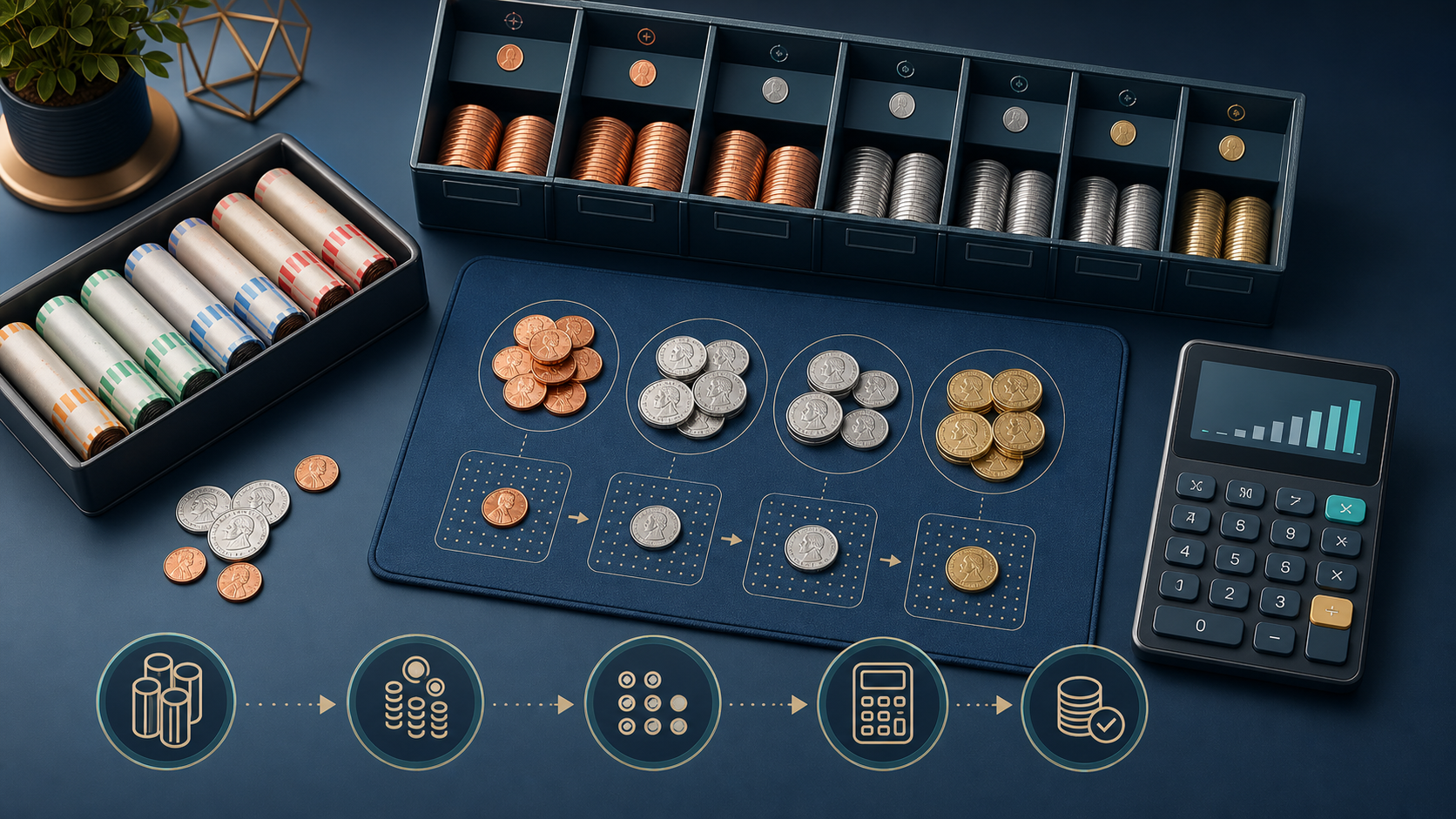
Sort by size, batch into fixed groups, roll what you can, and let the calculator carry the multiplication.
12 min read
Tie the physical drawer to the sales report by stripping out cards, refunds and paid outs before you compare.
12 min read
Strap, roll, slip and seal in an order that keeps the branch happy and leaves you evidence if a bag is queried.
12 min read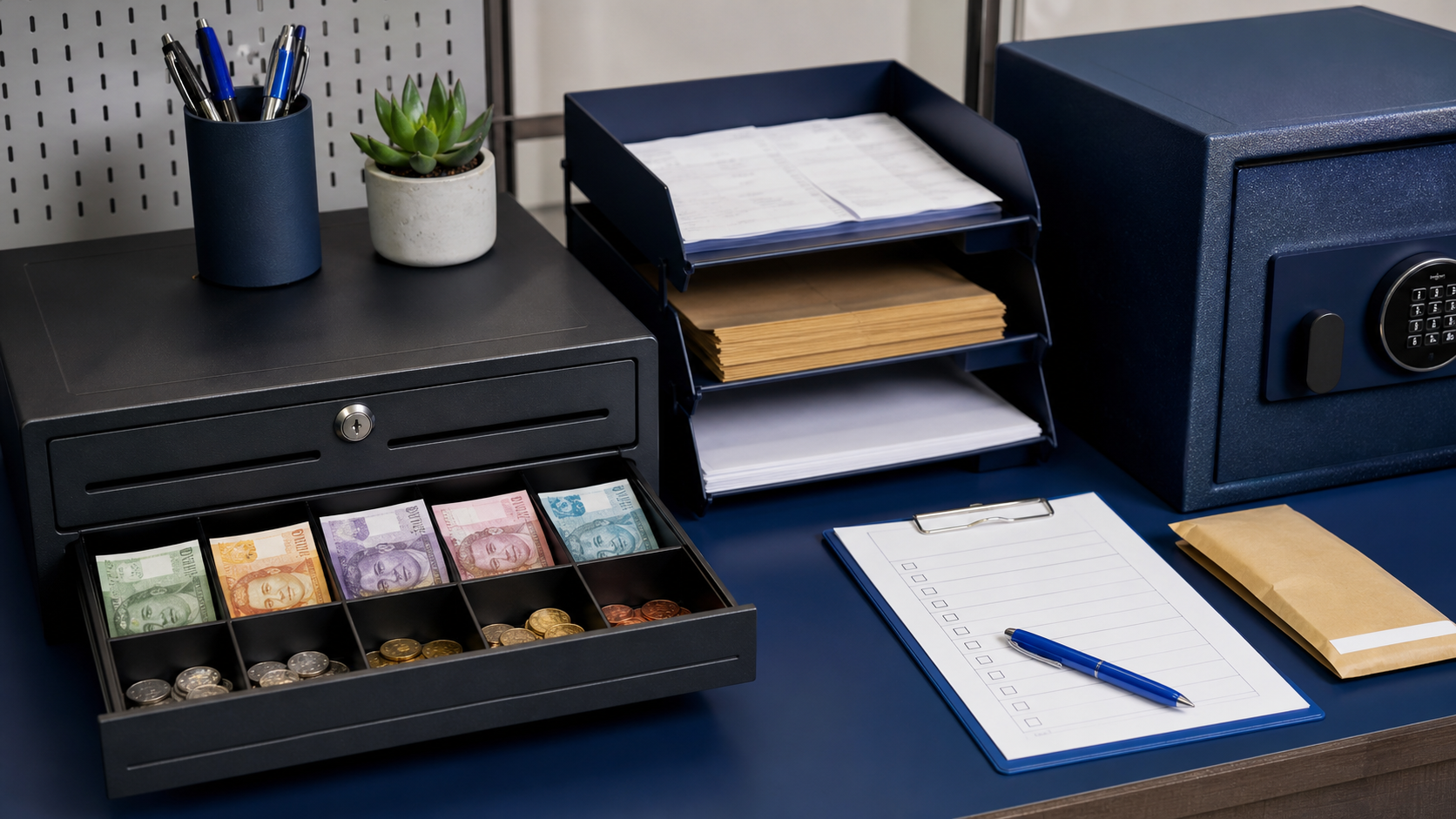
Drawer limits, safe drops, who counts what, and the variance rule that stops small differences becoming habits.
12 min read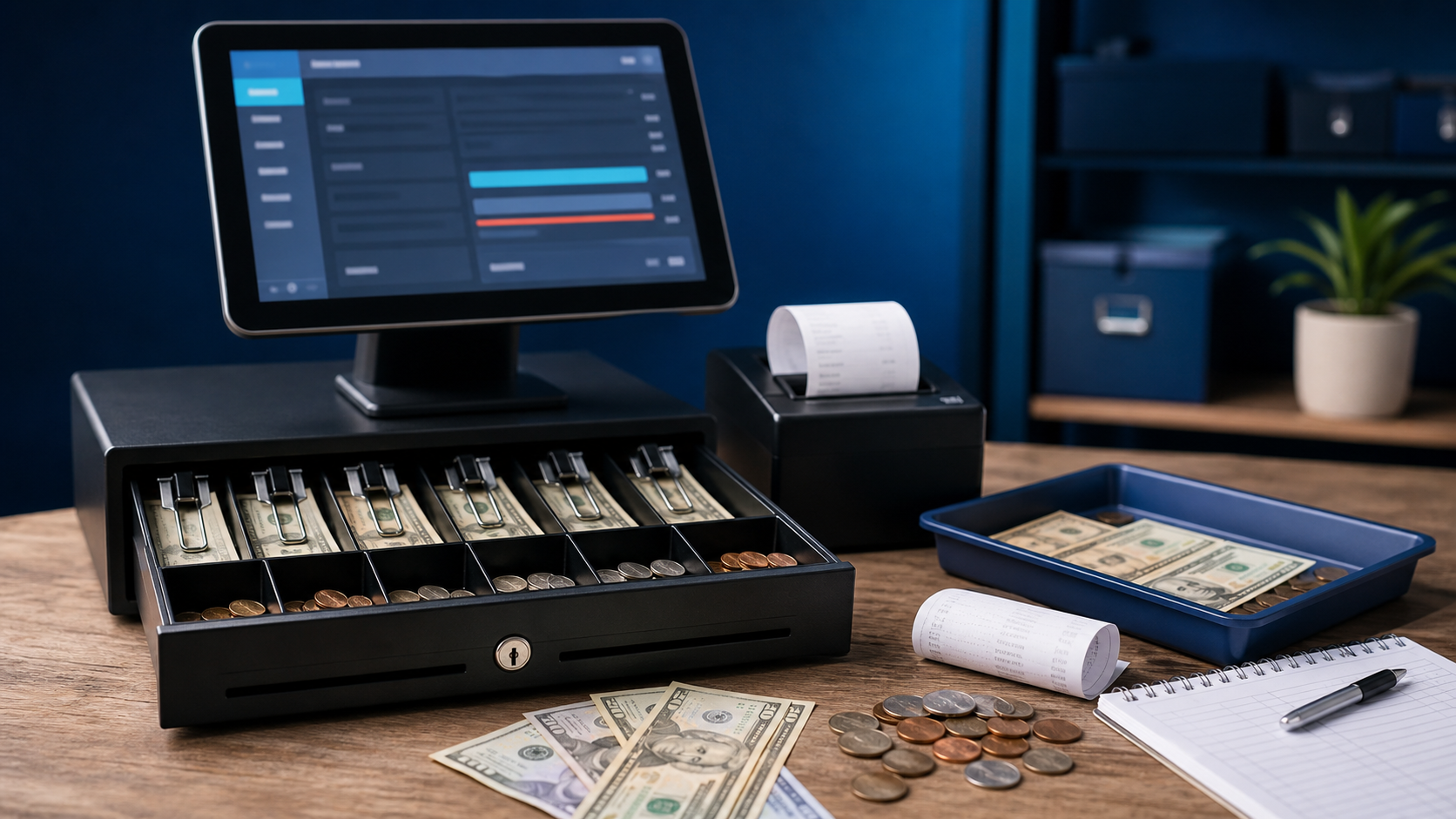
Work a variance back to its source instead of writing it off, and record the outcome so patterns become visible.
12 min readQuestions answered
How the maths works, where your figures live, what the reports contain, and what to do when a drawer refuses to balance.
Still need help? Contact us →Change Counter is a free denomination calculator that runs in the browser. You tell it how many of each banknote and coin you are holding, and it multiplies each quantity by its face value, adds the subtotals, and shows the finished cash total with a full breakdown beside it.
Ten sets ship with the calculator: USD, EUR, GBP, CAD, AUD, JPY, INR, PKR, AED and SAR. Choosing one loads its circulating notes and coins along with the matching symbol and decimal rule, so yen totals never show cents. Counting more than one at a time is covered in multi currency best practice.
Each row is quantity multiplied by face value. Those subtotals are added together with anything you enter in the Other cash field. All of it happens in minor units such as cents or paisa, which is why the result never picks up the rounding drift that decimal arithmetic can introduce.
Yes. The Banknotes and Coins tabs narrow the visible list so you can work one format at a time. Rows you hide keep the quantities you already entered and continue to count toward the total, which makes it safe to switch back and forth mid count.
It holds the figure the till should contain so the calculator can show the gap. A positive result means the drawer is over, a negative result means it is short, and zero means balanced. Read over or short causes and fixes to interpret the number properly.
No. Every calculation is performed by your own browser and no figure is transmitted anywhere. If you choose Save count, that one entry is written to local browser storage on the machine you are using. Our privacy policy sets this out in full.
Eight recent counts are kept on the device. Saving a ninth drops the oldest one automatically, which keeps the list short enough to scan. For a longer history, export each closeout as CSV or file the printed sheet with your daily paperwork.
Yes, and all three fields are optional. Fill in Counted by, Verified by and the count date and time before printing and they appear on ruled lines at the foot of the report. Leave any of them empty and that line prints blank so it can be signed by hand.
Download CSV produces a spreadsheet ready table of every counted denomination plus the totals and variance. Print report opens an A4 sheet that most browsers can also save as a PDF, which suits filing alongside a daily cash count sheet.
Yes. The layout stacks for small screens, the steppers are sized for thumbs, and quantity fields open a numeric keypad rather than a full keyboard. Practical tips are collected in how to count cash on your phone.
Use it for physical value that no listed row covers, such as a commemorative coin, foreign change or a rounded float carried over. Keep cheques, card settlements and voucher redemptions out of it if you want the total to represent cash alone.
The calculator can only total what you gave it. Recount any stack you rushed, look for a quantity typed twice, and confirm the expected figure excludes card and voucher takings. The common counting errors guide lists the usual culprits in order of frequency.
Every quantity and optional field will return to zero.